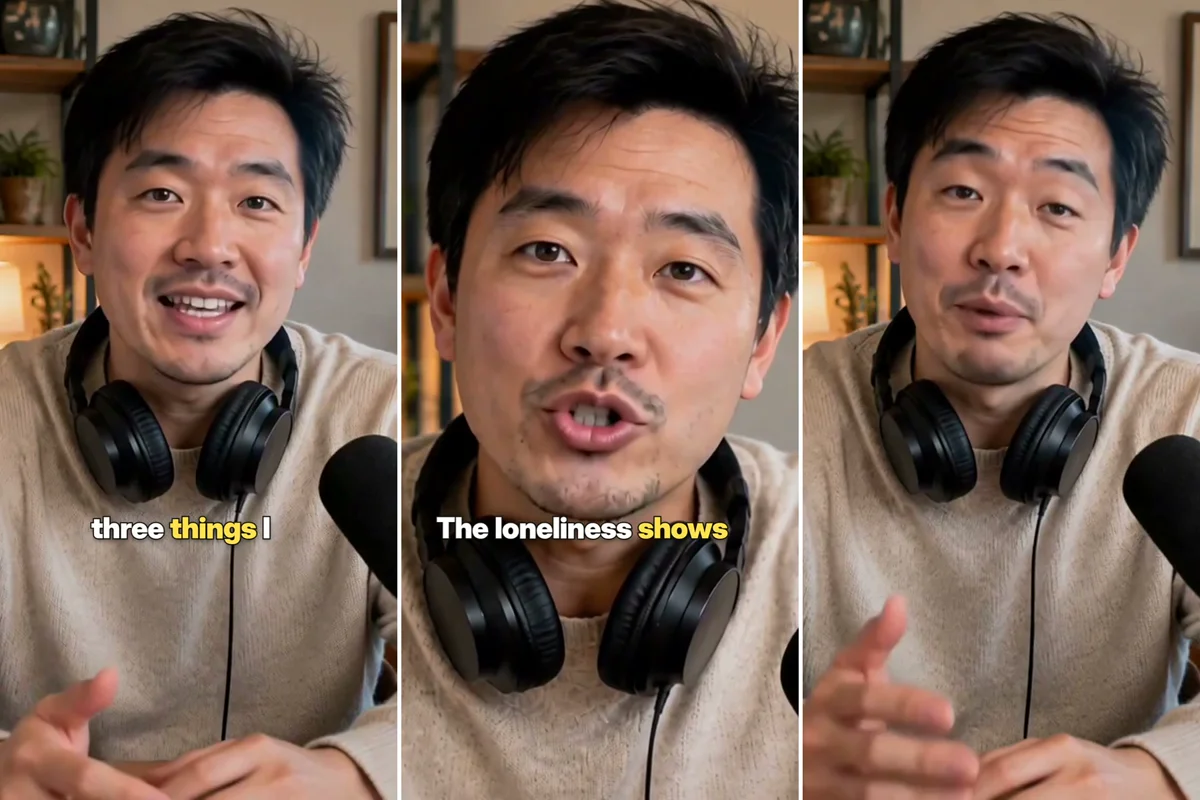
To turn a long video into shorts from a chat, connect Masonry to ChatGPT or Claude, paste a YouTube link (or attach your own recording in ChatGPT), and ask for the best moments as vertical clips with captions. Masonry reads the transcript and the moments viewers replay most, cuts each moment into a 9:16 clip that follows the speaker, and burns in captions timed to the words; reading and cutting cost no credits.
This is the job most podcasters, coaches and streamers do by hand every week: scrub a 40-minute recording, find four moments that stand on their own, crop to vertical, caption, export. In a chat it becomes one ask and a short review.
Below: setup, five asks to copy, the exact tools that run in order, caption and framing options, costs, and the limits that trip people up.
Set it up
In ChatGPT: open ChatGPT plugins, select Add, then Add custom MCP server. Name it Masonry, paste https://masonry.so/mcp, create it, then select Connect and Allow on masonry.so. In a new chat, type @Masonry before your ask. Full steps: ChatGPT setup.
In Claude: open the Claude setup page and select Add to Claude, check the URL reads https://masonry.so/mcp, select Continue, then Connect and Allow on masonry.so.
Either way you sign in on masonry.so and pick the workspace the app may use. Your clips are saved there.
Five asks to copy
1. Best moments from a YouTube link. Use a video you made or have the right to reuse.
@Masonry find the 4 strongest moments in [YouTube link] (my own video) and cut them into vertical clips for TikTok, 20 to 45 seconds each, best hook first. Big captions, and a title and three hashtags for each clip
2. One exact moment.
@Masonry cut 12:30 to 13:15 from [YouTube link] as a vertical short. Pop-style captions, 3 words at a time, and the hook "Nobody tells you this about pricing" on screen for the first 2 seconds
3. Your own podcast recording. Attach the file in ChatGPT, or paste a direct link to the MP4 in any app.
@Masonry here is our latest podcast episode with two hosts. Find the three moments where the conversation gets most heated or funny and cut each into a 30 to 60 second vertical clip. When both of us are talking, use a split screen. Captions in the lower third
4. A gaming stream.
@Masonry clip 1:02:10 to 1:03:00 from [YouTube link to my stream] as a vertical short with the gameplay on top and my face cam at the bottom. Karaoke captions in capitals
5. A highlight reel.
@Masonry from [YouTube link], pull the five best 8 to 12 second reactions and join them into one 50 second vertical highlight reel with quick whip transitions and captions
In Claude, drop the @Masonry and say "use Masonry" instead.
What happens behind the scenes
From a YouTube link
read_youtube_videoreads the public video: title, length, chapters, the moments viewers replay most, and the full transcript with a timestamp on every line. It is free. For a long video, the assistant can read it in parts by start and end time.- The assistant picks the moments. This is where ChatGPT or Claude earns its keep: it reads the transcript, looks for lines that make sense without context and start strong, and checks them against the most replayed parts.
clip_youtube_videocuts each moment, once per clip. A cut is 3 to 120 seconds, lands on pauses in the speech so no one is cut off mid-word, and takes up to a minute. It is free and returns a media id.combine_clipsfinishes each short: captions timed to the spoken words, on-screen text such as a hook or a call to action, and transitions if you joined several cuts.
From your own recording
add_mediabrings the file in: an MP4 or MOV attached in ChatGPT, or a direct link to the file itself (not a page that plays it), up to 300 MB. It is stored privately in your workspace, at no cost.transcribe_mediareads every spoken line with its start and end second, so the assistant can choose moments. This costs about 1 credit per minute of sound.clip_videocuts each moment, free, 3 to 120 seconds.combine_clipsadds captions and text, as above.
The assistant may also call inspect_video, which lists a video's length and every cut, when it needs to check what is on screen at a moment.
Framing and caption options
You can ask for any of these by name or in plain words.
| Option | Choices | What it does |
|---|---|---|
| Shape | 9:16 (default), 4:5, 1:1, 16:9, source | 9:16 for Shorts, Reels and TikTok; source keeps the original frame |
| Framing | auto (default), center, fit, stream | auto follows the speaker shot by shot; fit keeps the whole frame; stream puts gameplay on the top 60% and the streamer's face on the bottom 40% |
| Caption style | pop (default), karaoke, clean, boxed | pop shows words popping in with the spoken one highlighted |
| Words at once | 1 to 8, default 3 | 3 suits fast short-video pacing; 4 to 6 reads calmer |
| Caption position | lower (default), center, upper | |
| On-screen text | hook card, label, sticker, lower third, call to action | timed titles and hooks, up to 20 per video |
From your own footage, a 9:16 cut of a wide shot also puts two speakers in a split screen and keeps a wide group shot whole.
Tips for clips people finish
Ask for the hook first. A clip that opens on the punchline or the bold claim holds better than one that opens on "so, yeah". Tell the assistant to start each clip on its strongest line.
Give it your audience. "For founders who hate sales calls" leads to different picks than "for a general audience". The assistant chooses moments from the transcript, so context helps.
Review the picks before cutting. Ask for a list of moments with timestamps and one line on why each works, then approve them. Cutting is free, but your time watching weak clips isn't.
Keep captions short. Three words at a time is the default for a reason: it matches how fast people scroll. Go to 4 to 6 for calmer, educational clips.
Name the language. Captions detect the spoken language, but you can set it (for example Spanish) for clean results on mixed-language recordings.
Reuse what you made. Every clip has a media id. "Add a call to action at the end of clip 2" or "make a 4:5 version of clip 3" picks up from the existing cut instead of starting over.
What it costs
Reading a YouTube video, bringing in your own file and cutting clips are free. You spend credits on two things, and 1 credit is 1 US cent:
- Transcribing your own recording: about 1 credit per minute of sound, so a 60-minute podcast is about 60 credits. YouTube videos don't need this step; their transcript comes with
read_youtube_video. - The final render:
combine_clipscosts at least 1 credit, based on render time, plus a few credits to time the captions.
So clipping is far cheaper than generating video, where one 5-second clip on Masonry's default model is about 48 credits as of November 2026. If your workspace runs short, Masonry says so in the chat: in Claude with the prices and a link, in ChatGPT with a link to the Masonry plans page, and you add credits in your Masonry account.
Limits and troubleshooting
"This video can't be read." Private, members-only and age-restricted YouTube videos are off limits. Use a public link, or bring the file in yourself.
Your attached file wasn't used in Claude. Masonry takes files attached in ChatGPT directly. In other apps, give a direct link to the MP4 or MOV file itself, not a page that plays it.
The file is too big. The limit is 300 MB. Export a smaller file, or split the recording.
A clip feels cut off. Ask for a few seconds more at the start or end. YouTube cuts land on pauses in the speech, but the best line sometimes starts a breath earlier.
The crop misses the speaker. Ask for fit framing to keep the whole frame with bars, or center for a plain center crop.
Rights. Clip only videos you made or have the right to reuse. Clipping someone else's video doesn't give you rights to post it.
Where to go next
The Masonry MCP page lists all the clip, caption and video tools. If you want to make new footage rather than cut old footage, read how to make videos in Claude or in ChatGPT. Creators who post daily can pair clips with a recurring character from the AI character guide. More formats are in Masonry templates.